
Amp + reMarkable
I had a thought, what if I could read things AI creates offline and on my distraction free reMarkable tablet?
And, what if I could get Amp to send docs to reMarkable, I annotate or scribble on them and then Amp updates its own state based on that? We could collaboratively iterate.
Wouldn’t that be insanely useful when an LLM creates a PDF which is good but has some junk in it you don’t want and instead of a back and forth you just want to draw the changes. Move section from here to here. Use this style of alert box. Tweak the diagram like this.
I’ve lost countless tokens explaining this stuff only to have it be not quite right.
So, I just opened Puck and asked him; “is this feasible?”.
Ten minutes later with the help of remarkable-mcpwe had a prototype.
An example
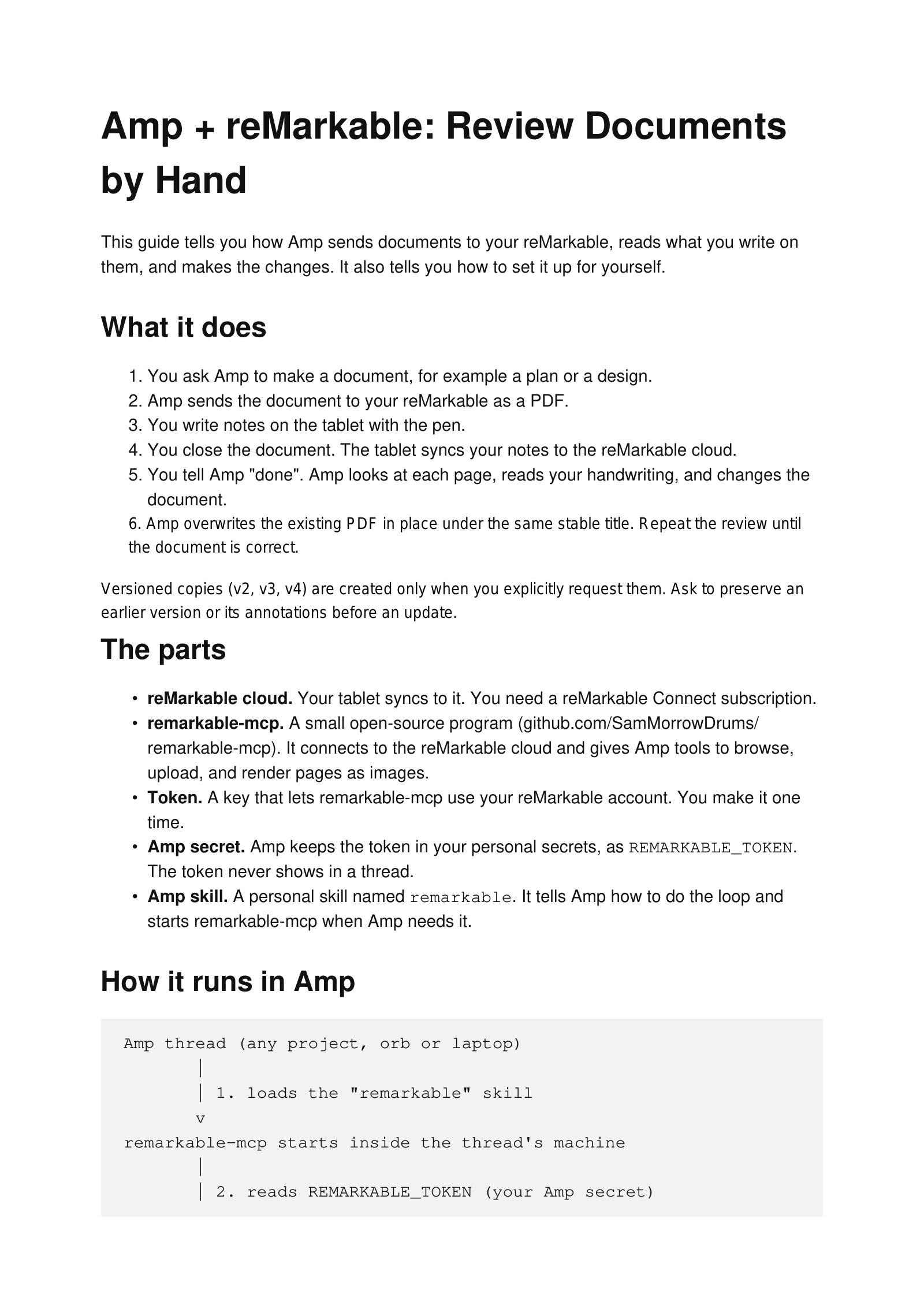
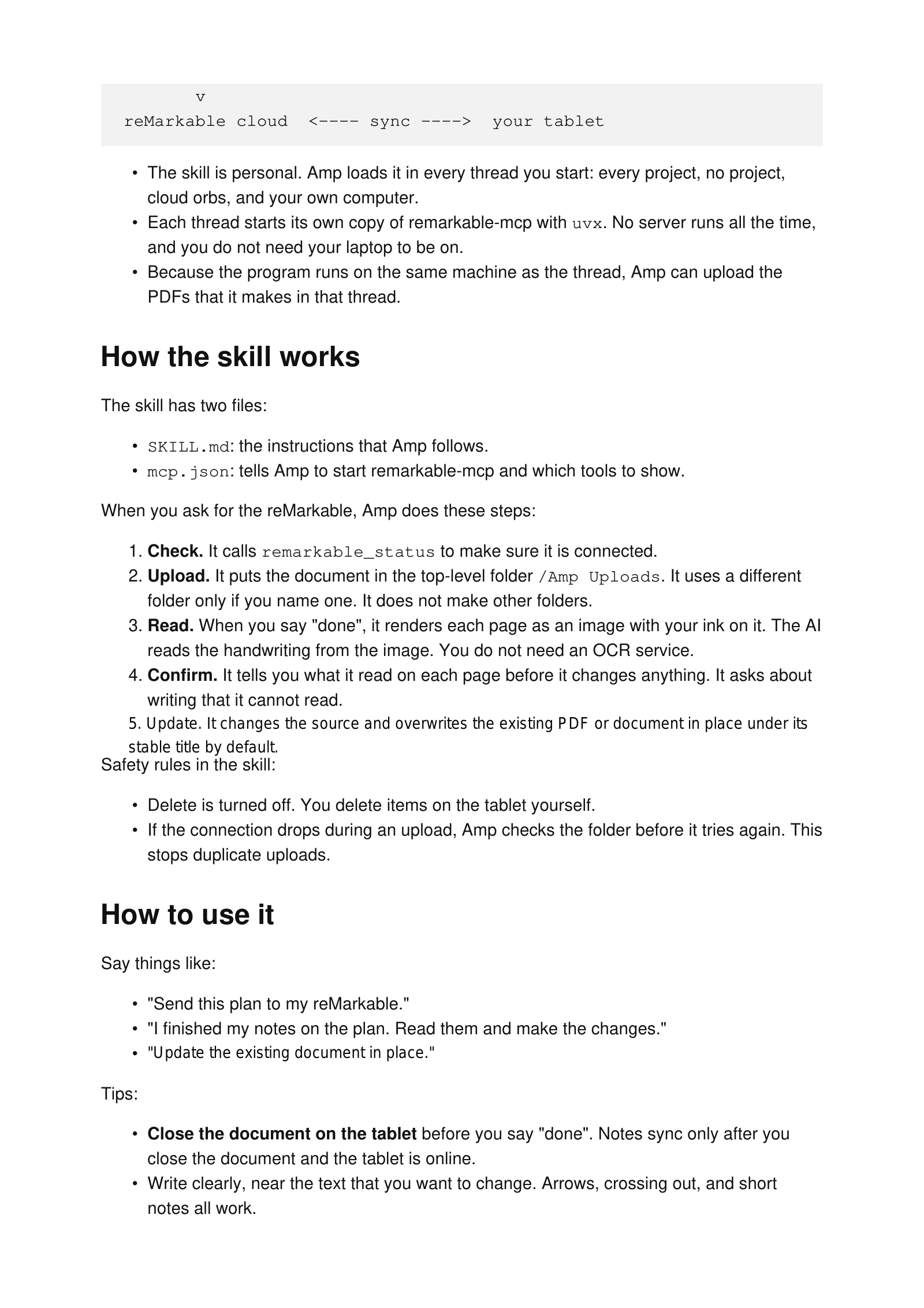
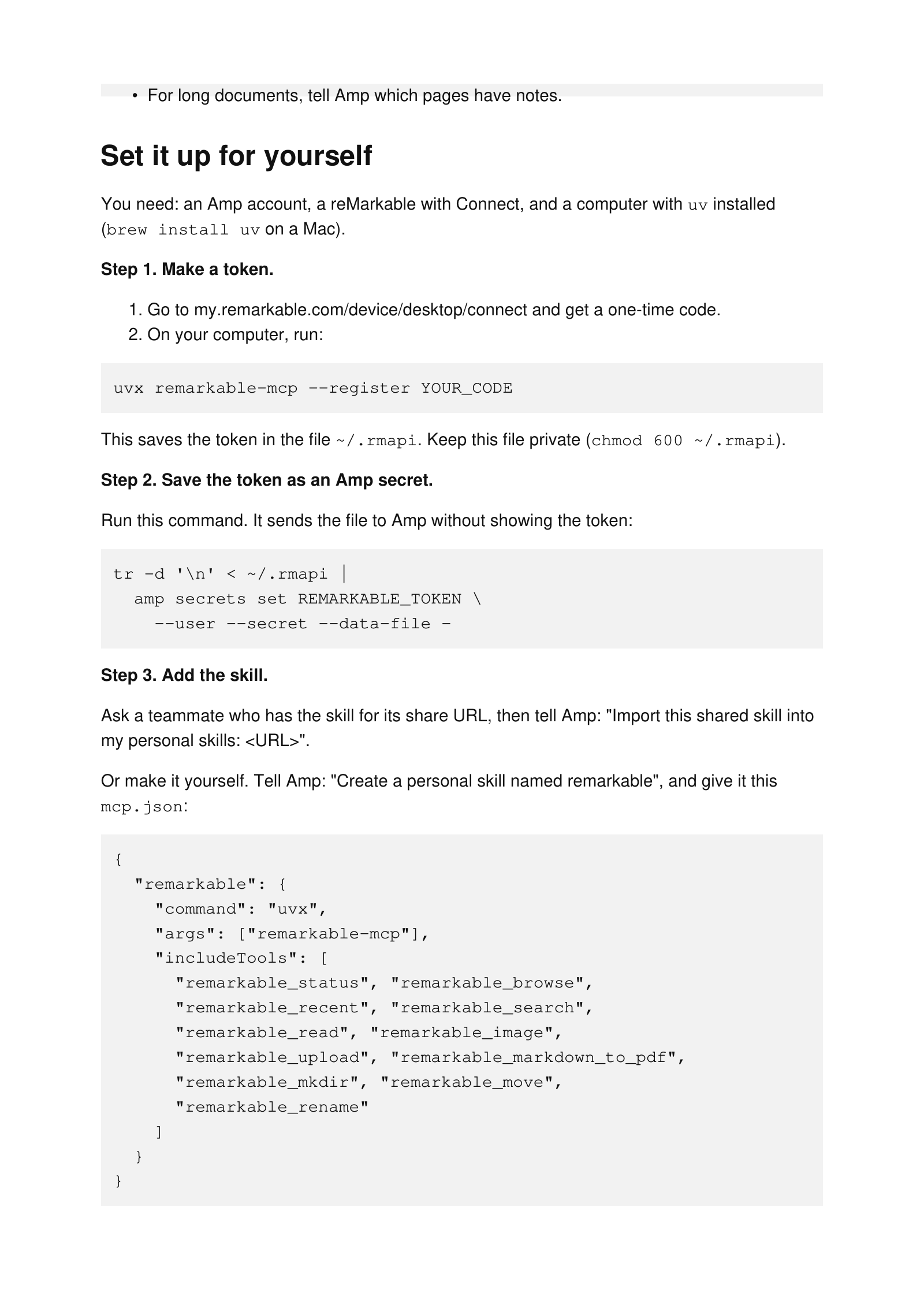
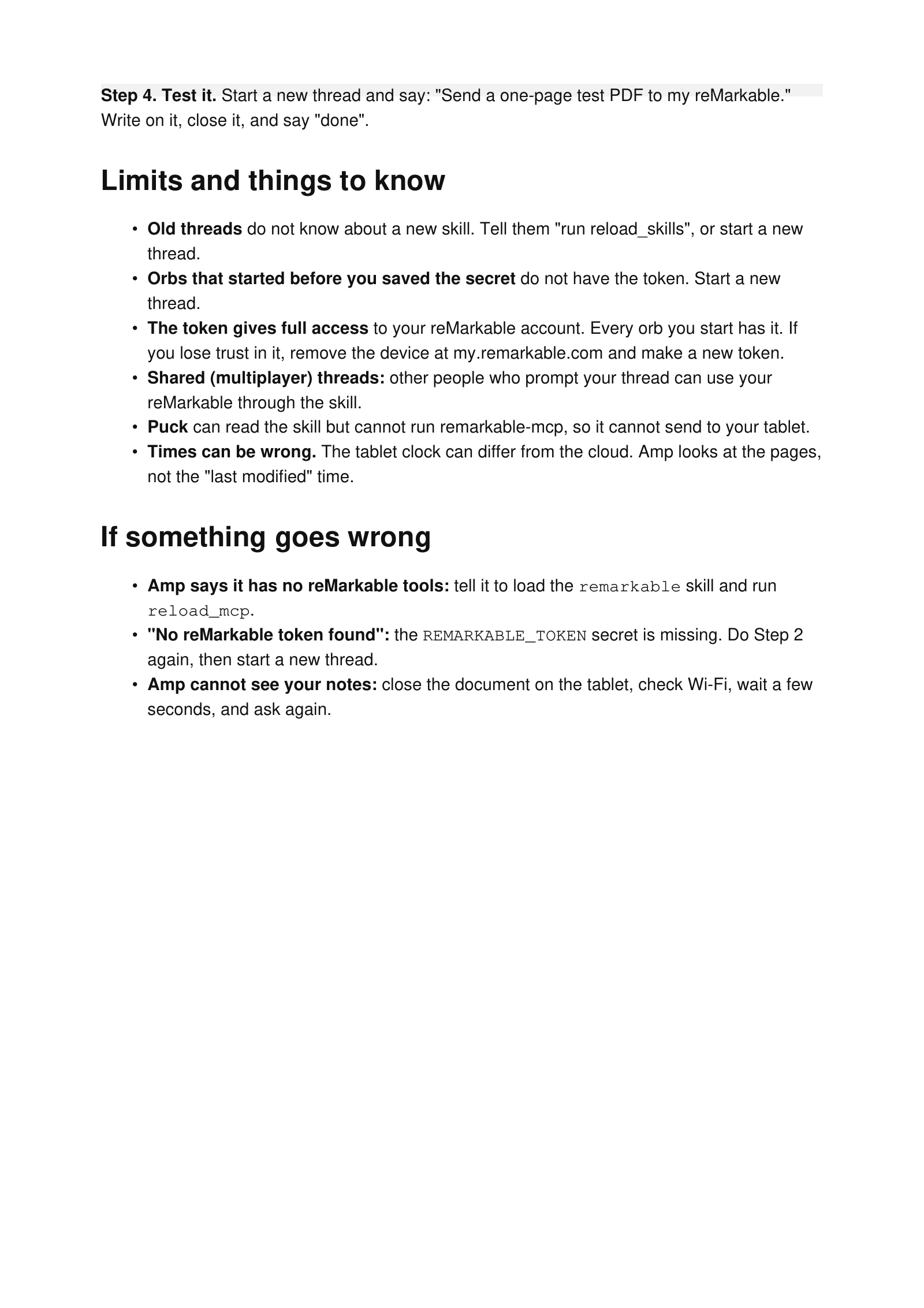
This is a draft to try the pdf shortcode with the real guide of how I got this all to work.
Details
This is made up of three parts:
- Amp
- a remarkable skill
- remarkable-mcp
I initially used this on my macbook runner but have now migrated to a cloud Orb so I can do this from anywhere - even when my macbook is in my backpack.
The rough idea is:
For full setup details the PDF above is an authorative source.
But my main takeaway from this in the age of AI is - just ask. Literally, just ask AI if you/it can do something. Often times it can and I find that so liberating.
Skill
Just tell your AI to read the PDF and setup the skill. The days of telling you how to set this up manually are over!
Details
---
name: remarkable
description: Sends PDFs or Markdown to Daniel's reMarkable tablet and reads his handwritten annotations back, so a document can go through review rounds. Use when the user asks to send, upload, or push something to the reMarkable, to read or apply what they wrote on it, or to do another review round. Works in orbs and on local machines.
---

# reMarkable review loop

This skill starts the reMarkable MCP server (`uvx remarkable-mcp`, cloud mode) from `mcp.json`. The server reads its token from the `REMARKABLE_TOKEN` environment variable. Orbs get it from Daniel's personal Amp secrets. On the MacBook, the server reads `~/.rmapi`.

## 1. Check the connection

1. Run `tool_search("remarkable")`. If it finds no functions, run `reload_mcp` once and search again. The search can leave out some functions, such as `remarkable_upload`. Import them anyway, and use `tool_describe("remarkable.remarkable_upload")` for their parameters.
2. Call `remarkable_status()` through `code_exec`. It must show `authenticated: true` and `transport: "cloud"`.

If it fails:

- `uvx` not found: install uv with `curl -LsSf https://astral.sh/uv/install.sh | sh`, then run `reload_mcp`.
- "No reMarkable token found": the orb has no `REMARKABLE_TOKEN`. Tell the user to check the personal secret in Amp settings. Do not ask for the token in the thread.

## 2. Folder

- Upload everything to the top-level folder `/Amp Uploads`. The user sorts the documents from there.
- Use another folder only when the user names it. Do not create folders.
- If `/Amp Uploads` does not exist, create it once with `remarkable_mkdir({ folder_name: "Amp Uploads", parent: "/" })`.

## 3. Upload

- PDF: `remarkable_upload({ file_path, parent_folder, document_name })`. `file_path` is an absolute path in this workspace.
- Markdown: `remarkable_markdown_to_pdf({ markdown, document_name, parent_folder })`. Use this when you do not already have a PDF.
- To make a PDF from HTML in an orb, use headless Chrome: `--headless --print-to-pdf=<out.pdf> <file.html>`. Python PDF libraries such as reportlab are usually not installed.
- Name the first version `<Title>`. Name each new round `<Title> v2`, `<Title> v3`, and so on. Do not replace the earlier version. It keeps the user's annotations.

## 4. Read annotations

- Ink syncs to the cloud only after the user closes the document on the tablet and the tablet is online. If you see no ink, tell the user to close the document and wait a few seconds.
- Do not use `modified` times to find changes. The tablet clock can differ from the cloud clock. Render the pages and look.
- `remarkable_image.raw({ document, page })` returns the PDF page with the ink on it. Pass the result to `content(r.content)` to see the image, then read the handwriting yourself. You do not need OCR.
- `remarkable_read({ document })` gives typed text and highlights. It does not give handwriting.
- Read every page. For a long document, ask the user which pages have notes.
- Before you change the source, tell the user what you read on each page. Ask about writing you cannot read.

## 5. Writes and errors

- Do one write (upload, move, rename) per `code_exec` call when you can.
- If the executor disconnects during a write, browse the folders to see what happened before you retry. Do not repeat a write blindly.
- This skill leaves `remarkable_delete` out on purpose with `includeTools` in `mcp.json`. `remarkable_status` still reports `delete: true`, because that is the server's capability. Do not delete. Tell the user to delete items on the tablet.
Keep up to date with my stuff
Subscribe to get new posts and retrospectives